Player Guide
Everything about playing Key To Heaven in your browser and in the apps: how to start, how to play, and what every window and button does. Use the contents on the left or the search box to jump to what you need.
Welcome to Key To Heaven
Key To Heaven is a free 2D online role-playing game. You explore islands, towns, caves and oceans, fight monsters and bosses, gather resources, craft, trade with other players, join guilds and follow long quest lines, alone or with friends.
The short version
- Pick a server and press JOIN SERVER.
- Sign in, or create a free account first.
- Create a character and press Start Game.
- Read the Tutorial window that opens, then press READY.
- Walk with WASD or the arrow keys, attack by holding Ctrl or by clicking a monster, pick things up with Space.
- Talk to people (right-click them), follow the quests (T) and level up.
On a phone or tablet you play with on-screen controls instead: see Phones and tablets.
Choosing a server
The first screen is Select Server. On the left is the list of servers, grouped by realm; on the right the DESCRIPTION of the server you picked.
Realms and servers
- A realm is a world with its own accounts and characters. Your account and characters work on every server in the same realm, so you can jump between them to play with people from other regions.
- Official realm: the main game, with servers in Sweden (EU) and the USA. The Sweden server is PvP (players can fight each other on PvP maps); the USA server is PvE (no player fights at all). Your characters work on both.
- Player-hosted: servers run by players.
- Legacy: a separate realm where the characters from the earlier era of the game live. Starting a new character there is not recommended.
What a server row shows
- Its number, flag, realm and location.
- Players Online: Yes when people are playing.
- Its status: ONLINE (green), Offline (red) or WIP (being worked on).
The description
Shows whether it is a PVP server (players can fight each other on PvP maps) or PVE, the website and contact, and the server's rates: Exp, Gold, Loot, Gather, PVP Drops (the chance to drop items when killed by a player) and PVE Exp Death Loss.
Click a server, then press JOIN SERVER. The game remembers your last server. You can come back and change server at any time: ← Change Server on the sign-in screen, or log out.
Signing in and accounts
The sign-in screen (K2H Online) shows the server you chose, with ← Change Server to go back.
Signing in
Type your Username (the email you registered with) and Password, then press Login. The game remembers your username, never your password. Press the buttons with the mouse or a tap; Enter does not send these forms.
Depending on where you play, the sign-in screen also has Log in with Steam and Sign in with Google. No account yet? These buttons create one for you the first time you use them.
Creating an account
- Press Create Account.
- Enter your email: it is your account name. Then a password twice.
- Press Create Account. On most servers you are signed in straight away.
- Some servers (such as Legacy) first send you an email with a verification code. Type it in Email verification code on the same screen and press Verify account: you are signed in. No email? Check your spam folder.
- The account name can't be only numbers; name and password need more than 3 characters (7 or more is better for the password).
- Only normal letters, numbers and symbols are allowed (no special characters such as å or é).
- You can create one account every 20 seconds.
Forgot your password?
- On the sign-in screen press Forgot Password.
- Enter your account email and press Request Recovery Code. A code is emailed to you.
- Type the Recovery Code and your new password twice, then Set New Password.
Common sign-in messages
| Message | What to do |
|---|---|
| That account name does not exist. Or you have the wrong Realm selected. | Check the spelling, or go back and pick a server in the realm where your account is. |
| Already logged into a server! | Your account is still online somewhere. Wait a minute and try again. |
| Multiple account logins is not authorized. | Only one account per player can be online at once. |
| Server is having connection issues atm. | The server can't reach its database. Try again later. |
| You are banned! | See key2heaven.com for more information. |
| Disconnected. | The server could not be reached. Check that it is ONLINE, or try another server in the same realm. |
Your characters
Select Character lists your characters with their class and level. A dead hardcore character shows 💀.
- Start Game enters the world with that character.
- Delete asks first; deleting cannot be undone.
- + Create New creates another one. You can have up to 3 characters per account.
- Logout goes back to the server list.
In the store apps you also find Delete Account (asks for your password; removes the account and all its characters for good) and the privacy policy. Steam players can save an email address here for important game news.
Creating a character
- Choose Your Nickname: 3 to 20 characters, letters, numbers, spaces and _ only. Rude names and names already taken are refused.
- Body: male or female, and a Skin tone.
- Hairstyle, Hair colour, Beard and Beard colour: use ‹ › and the colour swatches. ⟳ Rotate turns the preview.
- ▶ Tutorial opens the video guide in a new tab.
There is no class to choose: every character can become a warrior, archer or mage by how you spend your stat points and which weapons you use (see Stats).
Hardcore mode
Hardcore characters get a red Hardcore title in the game and their own top list. Some maps are marked as safe for hardcore players to die on, and arena matchmaking is safe too.
Press Create, then pick the new character in the list and press Start Game.
Your first steps
A new character starts at level 1 in the starting temple, with 25 gold, 25 healing potions and a Wood Cutting Axe, 5 skill points and 2 housing points. All five stats start at 10.
- The Tutorial window opens by itself the first times you play. Read the pages on the left (controls, interface, stats, PvP, shops, levelling, crafting, quests, items, performance), then press READY. Open it again any time with Shift+H or from the game menu.
- Look around: ? marks on the ground are signs. Hover the mouse over one to read it.
- Right-click people to talk to them, get quests and trade (see Talking to people).
- Fight weak monsters first. Good first spots: the mountain up and to the left of the start, and from level 3 the cave east of the starting temple and Goblin Bridge. The area to the left is a PvP area. Your vitals show your health; drink a healing potion with Q.
- Each level gives you 5 stat points, 1 skill point and 1 housing point. Spend them in the Character window (C).
- Follow your quests (T). The keys from quests 10, 20 and 30 open the way forward; the others are optional but rewarding.
Your screen
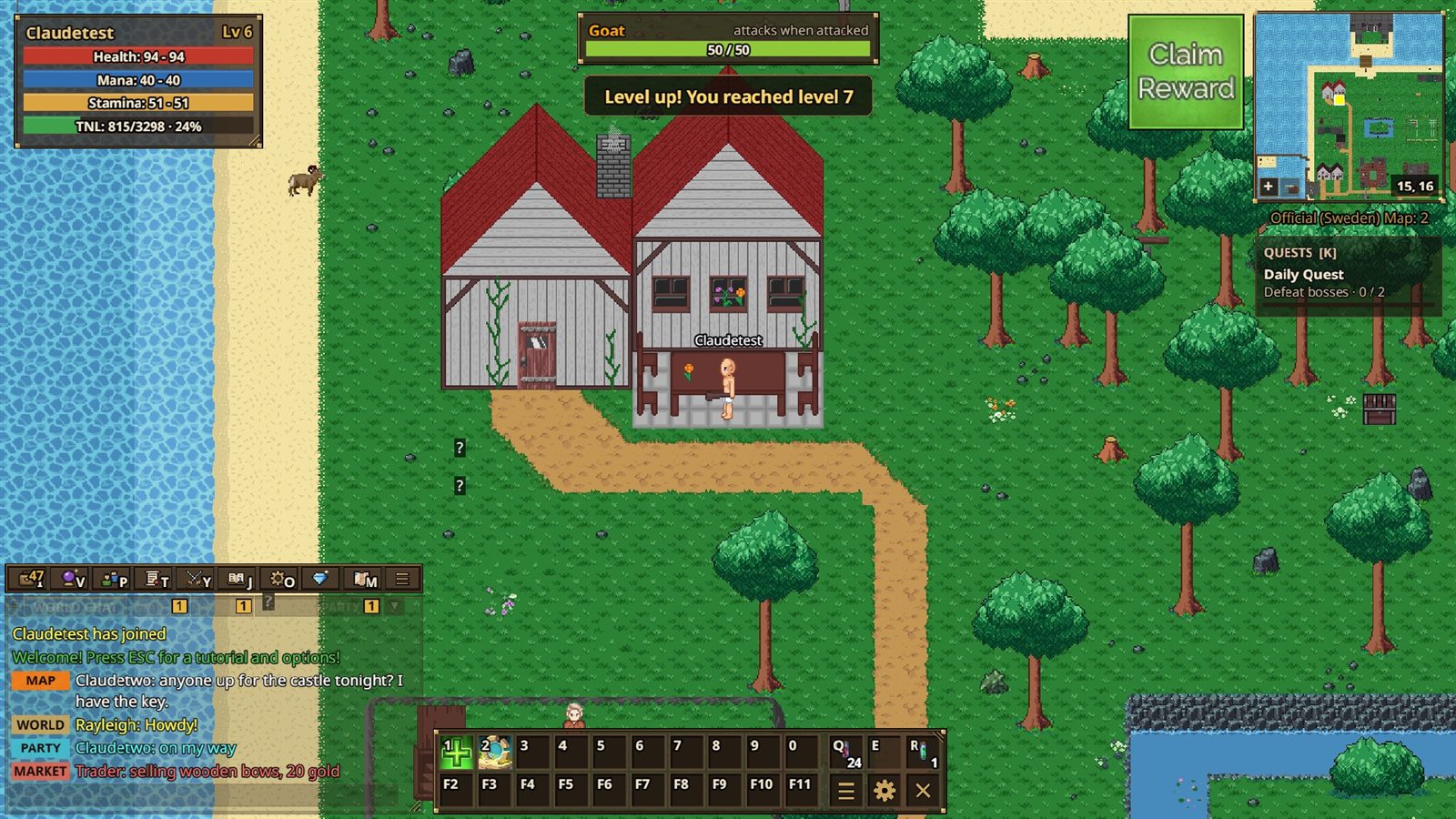 1
2
3
4
5
6
7
8
9
10
1
2
3
4
5
6
7
8
9
10
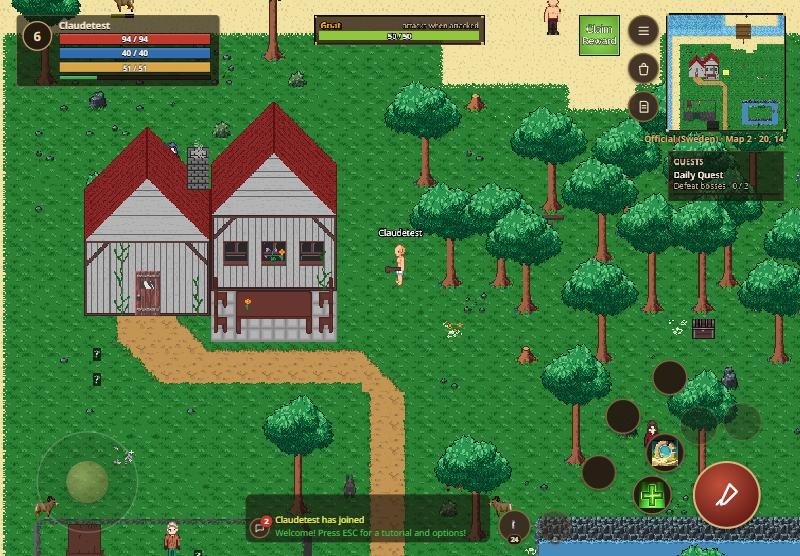
- Vitals: your name, level, Health, Mana, Stamina and TNL (experience "to next level", with %). Your buffs and boosts (a lit torch lasts 5 minutes, an exp potion) show as icons under it, with the time left; hover one to see what it does.
- Target frame: the monster you clicked or are fighting: name, how it behaves (attacks on sight, attacks when attacked, friendly, shopkeeper, guard, boss) and its health.
- Messages: level up, quest finished, rare item found.
- Daily reward: once a day a gift button with a red dot shows beside the minimap (under the round buttons on a phone). Click Claim Reward for a random reward (gems or an item); the battle lines say what you got.
- Minimap with your X, Y position and + / − zoom. Click it for the world map. Under it: server and map name (red with "PvP" on PvP maps) and your party.
- Quest tracker: the daily quest and your started quests. Click it to open your quests; a click on the daily quest opens its page.
- Toolbar: buttons for the main windows (see below).
- Chat: with tabs for World, Map, Market, Guild and Party (see Chat).
- Spell bar: 20 spell slots, keys 1–0 and F2–F11.
- Potion slots (Q E R) and the bar's buttons: All Spells, Hotkeys, hide.
The toolbar
The row of round bronze buttons above the chat, as in the desktop client. Hover a button to see what it does and its key; the key is also shown at its lower right (Options > Interface > Key hints hides them). A gold number on the helmet counts the points you can still spend, and a red one shows the free bag slots once 5 or fewer are left.
| Button | Picture | Opens | Key |
|---|---|---|---|
| Character | Helmet | The Character window: bag, equipment, stats and skills | I |
| Spells | Scroll | Shows or hides the spell bar | V |
| Social | Bust | Friends, party, guild, players online and the top lists | P |
| Quests | Castle | Your quest log | T |
| Battle Royale | Crown (red) | Battle Royale and arena matchmaking | Y |
| Game Information | Flag | Every item, monster, spell and pet, and how the game works | J |
| Options | Gear | Settings and hotkeys | O |
| Shop | $ (green) | The gem shop | Shift+N |
| Map | Map | The world map | M |
| Game Menu | Three bars | Continue, options, help, fullscreen, logout, exit | Esc |
In the world
- Numbers that pop up: damage (white on monsters, red on players) and experience (yellow).
- Words over heads: Miss, Critical, Parry, Counterattack, Lifesteal, Doublehit, Poison and more.
- A health bar appears over a hurt monster or player.
- Star monsters have 1 to 3 stars under them: stronger, more experience, better loot (see Fighting).
- What players say in chat shows above their heads for a few seconds.
- Battle messages (what happened in a fight, and why something did not work) show at the lower left for 10 seconds.
Windows can be dragged by their title bar and resized from their edges. The game remembers where you put them; Options > Interface > RESET WINDOWS puts them back.
Controls (keyboard and mouse)
All keys except Ctrl, Tab, Esc, Enter and G can be changed in Options > Hotkeys. Your keys are saved per character in your browser.
Moving and fighting
| Walk | W A S D or the arrow keys |
| Attack | Hold Ctrl, or click / hold the left mouse button |
| Pick up | Space or G |
| Gather | F (with a tool equipped) |
| Healing / Mana / Stamina potion | Q / E / R |
| Spells 1–10 | 1 … 0 |
| Spells 11–20 | F2 … F11 |
| Deselect spell | Z (or Esc) |
| Chat | Enter |
| Last thing you wrote | Shift+L |
Windows
| Inventory / Stats | I / C |
| Quests | T or K |
| World map | M or Tab |
| Whos Online / Top lists | P / L |
| Chest (bank) / Market | B / N |
| Crafting | U |
| Game Information | J |
| Options / Help | O / H |
| Tutorial | Shift+H |
| Chat channels | X |
| Battle Royale / Matchmaking | Y |
| Castle of No Return | Shift+C |
| Gem shop | Shift+N |
| Game menu | Esc |
The Esc key
Esc first closes a right-click menu or a question box, then all open windows; with nothing open it shows the game menu. It also deselects your spell.
Mouse
- Left-click a monster: your character walks up to it and keeps fighting it (with a bow or a damage spell selected: walks into range and keeps shooting or casting). It stops when the monster dies, when you click elsewhere or walk yourself.
- Left-click the ground: attacks once that way; hold to keep attacking.
- Right-click a person, monster, player or object for more: talk to people, see a player's profile, see what a resource needs.
- Mouse wheel over the world zooms in and out; the middle button resets the zoom. Over a window the wheel scrolls the list or text under the pointer; you can also drag a list's scrollbar or click its arrows.
- Hover a monster to see an outline in its health colour; hover a sign (?) to read it.
Hotkeys do nothing while you type in chat or another text box. While you hold Shift, Ctrl or Alt the normal keys still work, so you can hold Ctrl to attack and press a number to pick a spell.
Fighting, PvP and dying
How an attack works
What happens when you attack depends on what you hold:
- Melee weapon (or empty hands): you hit the tile you face. With the mouse you first turn toward the mouse.
- Bow: shoots at the tile under the mouse cursor.
- A spell selected: casts it at the tile under the mouse.
- A gathering tool: you gather instead of fighting (see Gathering).
Your damage comes from your stats and gear: see Stats and Game Information > FORMULAS. Experience is given for the damage you do, so you also get experience for monsters you helped kill.
- A monster's hit can never take more than 35% of your maximum health at once. Each point of armor (AC) blocks 1 damage.
- Some monster drops come out unique (shown as "+0", 10% chance): they can be upgraded further.
Star monsters
About 1 in 100 monsters and bosses (not in the Colosseum) spawns as a star monster, with stars under it:
| Stars | How often | Health | Experience | Damage |
|---|---|---|---|---|
| 1 | 6 in 10 | x2 | x4 | x1.3 |
| 2 | 3 in 10 | x3 | x6 | x1.5 |
| 3 | 1 in 10 | x4 | x8 | x2 |
Each star also gives 50% more gold and 30% more chance of a unique drop and of Emeralds, a currency used for crafting, skins and the Guild Hall.
PvP (player versus player)
- Players can only fight each other on a PVP server (the server list says PVP or PVE), on PvP maps: the map name under the minimap is red and says "PvP". Safe maps are never PvP.
- Both players must be level 10 or higher, and no more than 40 levels apart.
- In arenas (Colosseum, matchmaking, Battle Royale) players can fight on every server, and the level rules don't apply there.
- Attacking a player stops your movement for a few seconds.
- PvP damage is balanced: only 75% of armor counts, and very small hits are raised (below level 50 a hit under 7 becomes 5–10; when both players are above level 50 a hit under 15 becomes 10–20).
- Don't stand around away from the keyboard on PvP maps.
When you die
You come back at your spawn point. You may lose things (the exact numbers are the server's own; the server list shows PVP Drops and PVE Exp Death Loss):
| Killed by a player | Killed by a monster | |
|---|---|---|
| Each worn item | 25% chance to drop | 5% chance to drop |
| Each bag item | 5% chance to drop | 5% chance to drop |
| Gold | not lost | not lost |
| Experience | not lost | 5% of this level's experience |
Hardcore characters die for good: a HARDCORE card says "You have died", and BACK TO THE LOGIN SCREEN takes you back to the start.
Stuck?
If you can't move, use Options > General > I'M STUCK: it takes you back to the last safe spot (once every 30 seconds).
Spells and the spell bar
The spell bar holds 20 spells: the top row is 1–0, the bottom row F2–F11. You learn spells from spell scrolls and shops; Game Information > SPELLS (or the bar's All Spells button) lists every spell, what it needs and where to get it.
Casting
- Press a spell's key to select it (gold border), then left-click a tile or monster to cast it there. Holding Ctrl or the mouse keeps casting.
- Press the same key twice quickly, or double-click the slot, to cast it on yourself.
- Some spells (such as Explosion, Lightning, Stun and EarthShaker) go off at once when you press the key.
- Damage and healing spells stay selected for the next cast; buffs and travel spells deselect themselves.
- On a computer the mouse cursor shows the spell's area. It is red when the cast can work and grey when it is out of range or blocked.
- Z, Esc or right-clicking the world deselects the spell.
When a cast fails the slot flashes the reason: Out of range!, Can't cast through blocked!, Spell is not ready yet., Not enough Mana / Stamina. A clock sweep on a slot shows its cooldown.
Organising the bar
Right-click a spell for its menu: Cast on yourself, Details, Move left / Move right, Deselect and Forget spell… (asks first; Alt+right-click forgets at once).
Potions
The three potion slots beside the bar are Healing (Q), Mana (E) and Stamina (R), with how many you carry. Each key drinks the first matching potion in your bag. Drag a potion from the bag onto its slot to choose which potion that key drinks.
The bar's small buttons: All Spells, Hotkeys (change the keys) and X (hide the bar; V shows it again).
Talking to people, shops and travel
- Right-click a person (NPC) to open their menu: TALK, QUEST, TRADE, SAY BYE. Only what they offer can be clicked. Attacking a friendly person also makes them talk.
- A conversation window shows who they are and what they say; DONE goes to the next page or closes it.
- Shops: walking onto a shop tile or trading with a shopkeeper opens the SHOP window.
- Doors, stairs and cave mouths take you to another map; walking off the edge of a map takes you to the next one.
- Chests on the ground open when you step on them.
- A ship takes you to other islands for free, and a raft takes you out on the sea (see Islands and travel). Some people offer to teleport you for gold.
- Some people let you set your spawn point (where you come back after dying).
Islands, travel, rafts and darkness
The world is a chain of islands, each harder than the one before. You start on Mirovia. Every island has a main town with a harbour.
Travel by ship
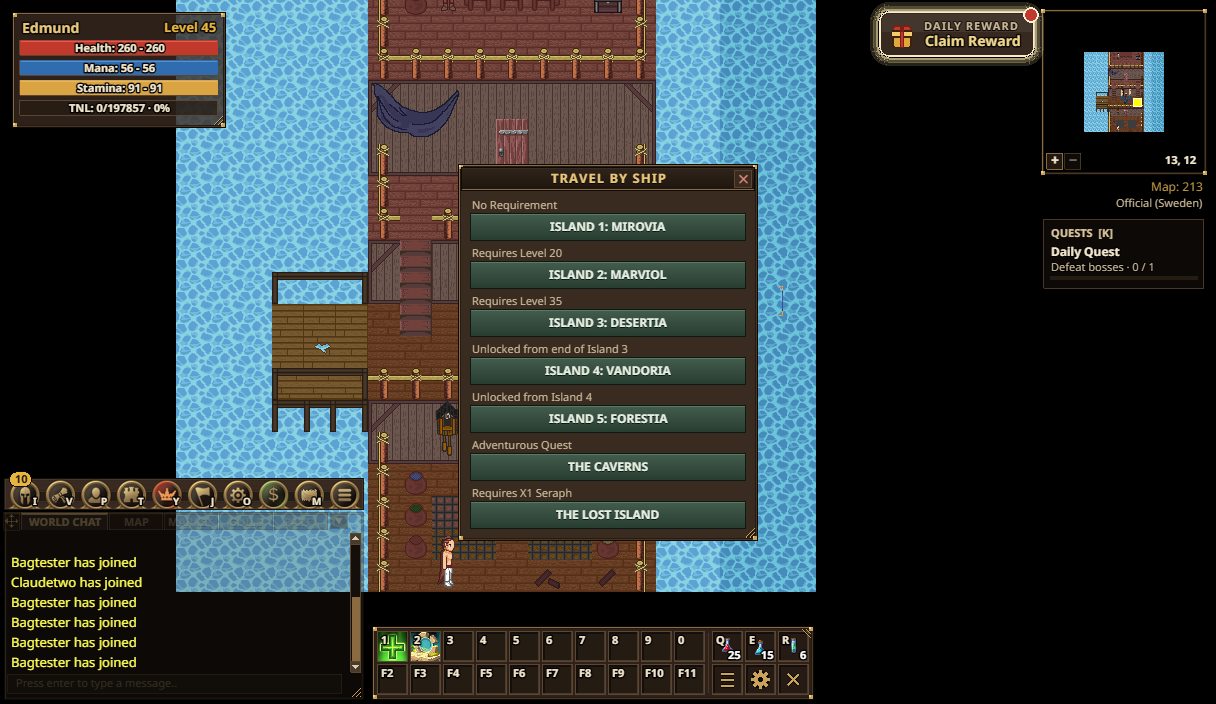
Talk to the ship's captain at a harbour to open Travel By Ship. The trip is free; a destination you can't go to yet shows what it needs.
| Destination | What it needs |
|---|---|
| Island 1: Mirovia | Nothing (the starting island) |
| Island 2: Marviol (snow) | Level 20 |
| Island 3: Desertia | Level 35 |
| Island 4: Vandoria | Unlocked at the end of Island 3 |
| Island 5: Forestia | Unlocked from Island 4 (quest 40, "Destination") |
| The Caverns | Progress in the Adventurous Quest |
| The Lost Island | Seraph 1 or higher |
Each time you seraph, the level needed for an island goes down by 5 (by 15 at most). Beyond Forestia lies Goldmane Mountain, reached over a bridge late in the game.
Rafts and the sea
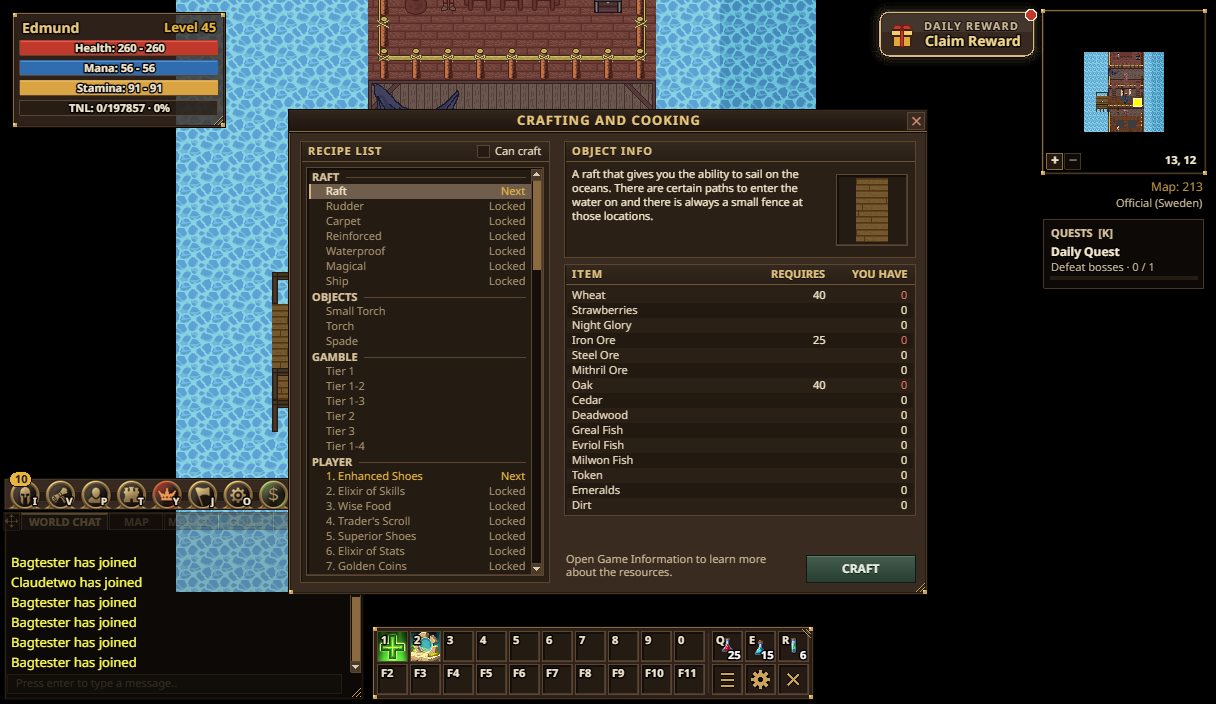
- Craft a Raft in the crafting window (U), section RAFT. Then come the upgrades, crafted in order: Rudder (faster), Carpet (looks), Reinforced, Waterproof, Magical and finally a Ship.
- Rafts are permanent: you keep them when you seraph. The bag's RAFT area shows the ones you own.
- You go onto the water at spots on the shore with a small fence: walk onto one with a raft and you sail out.
- Out on the sea are other coasts and the ocean maps between the islands. Monsters leave you alone while you are on your raft. Dying or recalling ends the trip.
Dark caves and torches
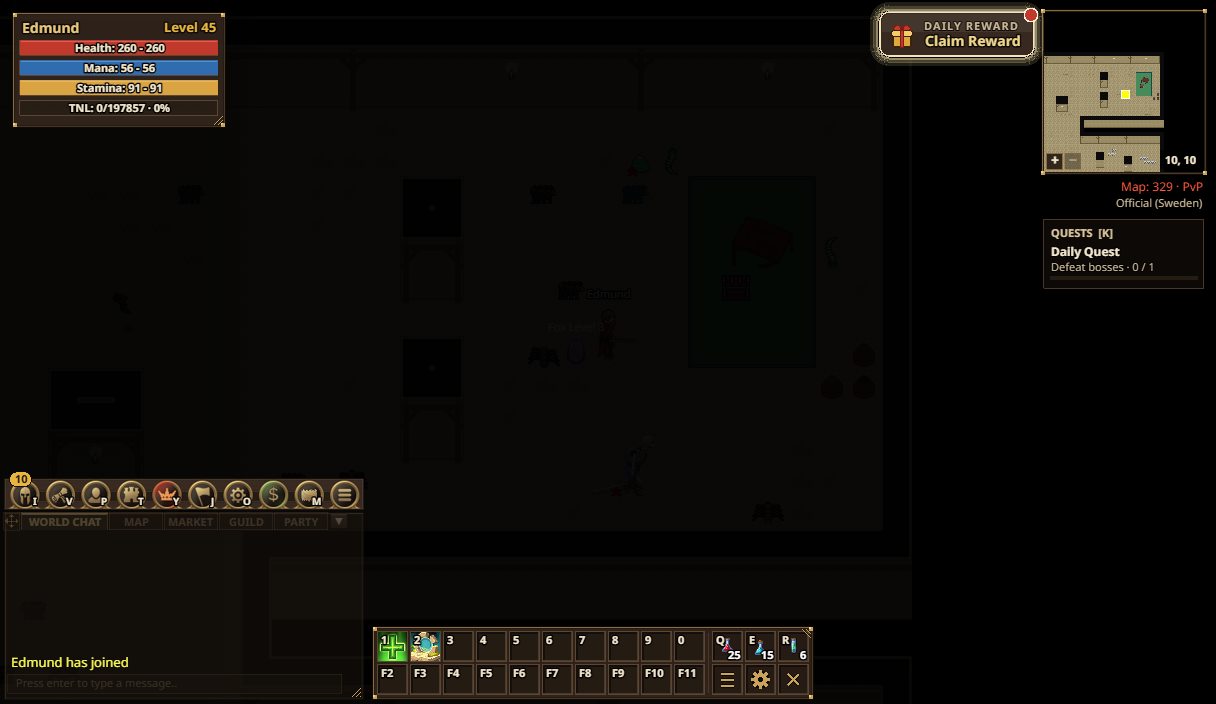
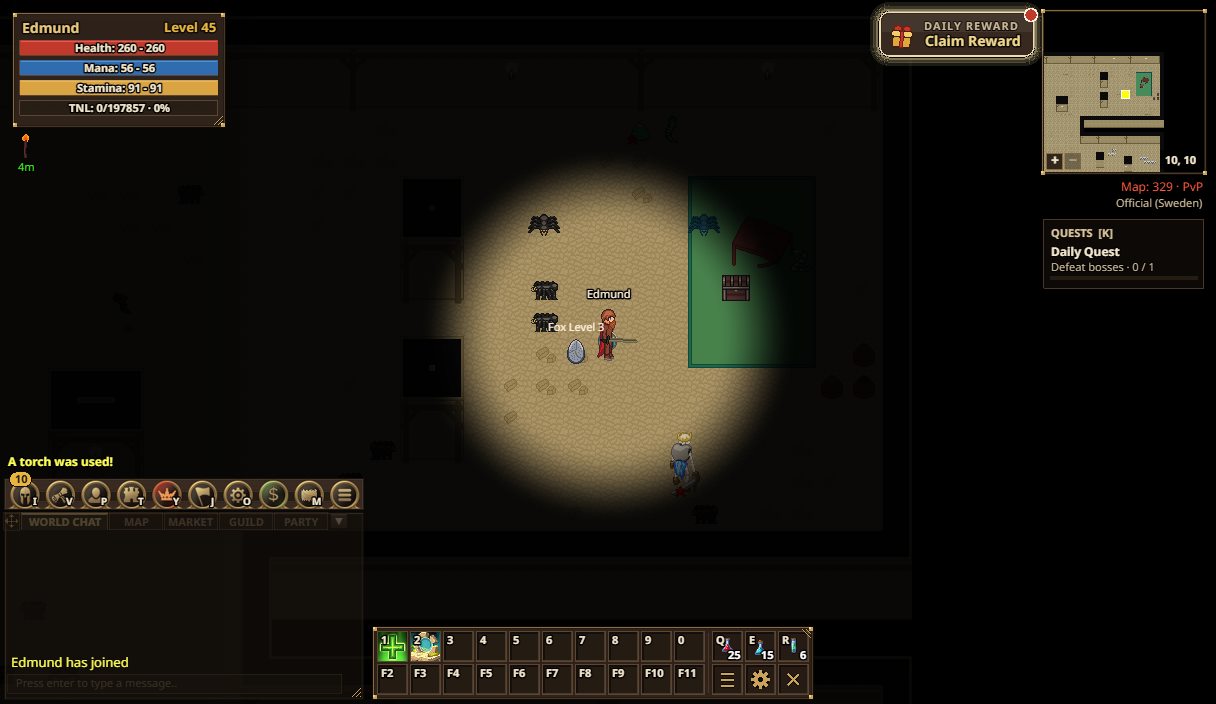
Some caves and places are dark, some so dark that you see nothing at all. A Torch or Small Torch lights the area around you for 5 minutes: use it from your bag (double-click). Torches are crafted in Crafting > OBJECTS. Bring a few before you go into a cave, and watch out: dark caves hide strong monsters, and some of them are PvP maps.
Chat
Press Enter to type ("Press Enter to chat…"), Enter again to send, Esc to cancel. A message can be 300 characters long.
Channels
| Start your message with | Goes to |
|---|---|
| (nothing) | World chat: everyone on the server |
| : | Map: players on your map |
| - | Guild |
| ; | Market: buying and selling |
| _ | Party |
| /Name message | A private message to that player |
The channel you used sticks for your next message. The tabs WORLD CHAT, MAP, MARKET, GUILD and PARTY show one channel each (World shows everything, with a coloured tag per line) and count unread messages; each channel keeps its own last 300 lines, so a busy World chat doesn't push your guild and party talk away. Private messages show in World with a pink PM tag. A line from another server of your realm starts with its name, for example [EU].
While typing: Tab after / completes a player name (press it again for the next name; Shift+Tab goes back), and ↑ / ↓ bring back the lines you sent last. Whispers also show on the Map, Market, Guild and Party tabs, and the World badge turns pink for an unread whisper. Shift+Enter starts a reply to the last whisper, and /r message answers it too. On phones a Reply to … button shows above the chat field.
Chat commands
- !roll: rolls a number from 1 to 100 that everyone on your map sees (handy for sharing loot).
- !help, !ping, !events and !clear (clears your chat and battle messages).
The chat window
- Drag the four-arrow grip to move it and its edges to resize it. The mouse wheel or the scrollbar at its right scrolls the log (on a touch screen, drag the log).
- ▼ / ▲ folds it to the tab row.
- Right-click the log (or press X) for CHANNELS, where you can mute Main, Map, Market, Guild, Party, PM or System messages for this session.
- Ctrl+click an item in your bag to show its stats in chat.
- Options > Interface has the chat text size.
Character window: bag, stats and skills
Open it with I (bag) or C (stats). It has three tabs: BAG, STATS and SKILLS.
Bag
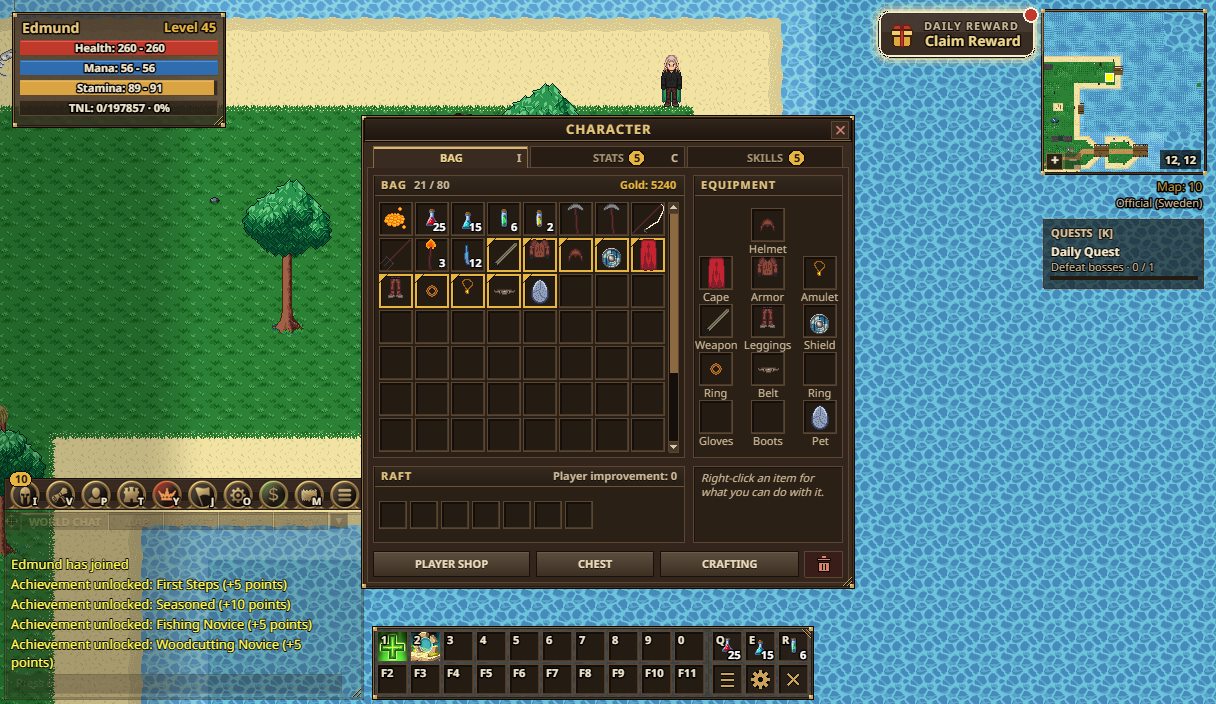
The page has framed areas: BAG with your 52 slots (its title shows how many are in use and your Gold), EQUIPMENT with the slots you wear (Helmet; Cape, Armor, Amulet; Weapon, Leggings, Shield; Ring, Belt, Ring; Pet), RAFT with the seven raft upgrades you own and your Player improvement level, and a box naming the item you picked. The buttons along the bottom open other windows.
- Click an item to select it; double-click to use, equip or unequip it.
- Right-click an item for Use / Equip / Unequip, Link in chat, Sell…, Drop… and Trash….
- Drag items: onto another slot to swap, onto an equipment slot to wear it, onto the world to drop it, onto the red trash slot to destroy it, onto the chest window to store it.
- Hover an item you could wear to compare it with what you wear now (▲ better, ▼ worse); hold Shift to see the worn item's own tooltip beside it.
- Sell… shows what you get (TOTAL, with − / + and MAX for a stack) and warns in red when the item's upgrades would be lost. Alt+right-click sells a single plain item at once (stacks, upgraded items and pets open the box); Ctrl+click links it in chat.
- Selling and the chest only work in a safe zone. Worn items can't be sold or listed.
- PLAYER SHOP opens the player market, CHEST your storage, CRAFTING the crafting window.
Items
Hover an item for its details; right-click pins them. Requirements are green if you meet them and red if not.
- Rarity shows in the name and slot colour: normal, then purple, green, yellow and the rarest in turquoise / red.
- Unidentified items (light blue) hide a bonus: someone in the centre of each town can identify them.
- Upgraded items have "+N" and the bonus in brackets; the "Safe Upgrade" level is how far you can upgrade without risk (see Blacksmith).
- Pets show their level and abilities; potions what they restore or boost.
Stats
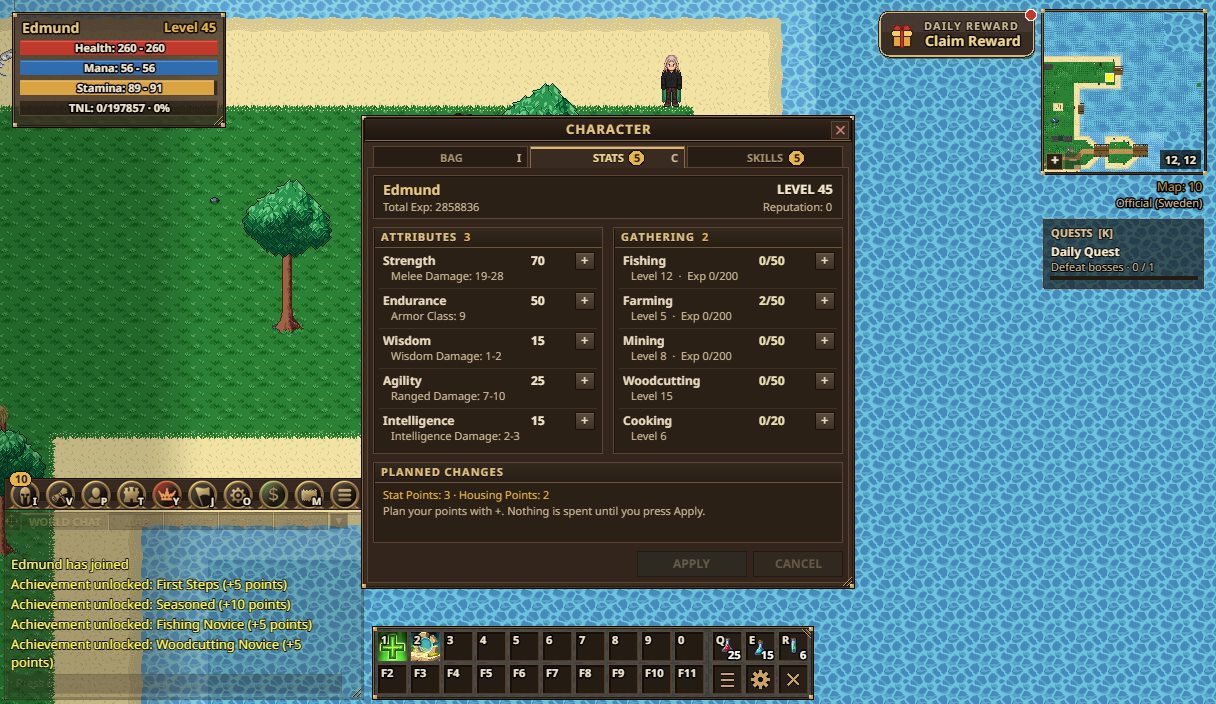
Each level gives 5 stat points. The page shows your character (name, level, total experience, reputation), then two areas side by side, ATTRIBUTES and GATHERING, each with the points you have left to spend after its title, and under them PLANNED CHANGES.
Click the + next to a stat to plan a point (Shift+click plans 5). The new value turns orange and a − lets you take a point back. Nothing is spent until you press APPLY (or Enter) at the bottom of the page; CANCEL (or Esc) takes all planned points back. Both buttons are always there, greyed out until you plan something. PLANNED CHANGES shows the points you have, what you planned (for example "Strength 10 → 12") and the skills and items the new stats would let you use.
| Stat | What it does |
|---|---|
| Strength | Melee damage (and a little bow damage). Heavier weapons need more. |
| Endurance | More health (+2 per point) and stamina; armor needs it. |
| Wisdom | Spell damage for wisdom spells, healing, more mana. |
| Agility | Bow (ranged) damage. |
| Intelligence | Spell damage for intelligence spells, more mana. |
The line under each stat shows the damage or armor it gives you now; a green +N is the extra from buffs and upgrades. While you have points left to spend, a gold number shows on the STATS and SKILLS tabs and on the Character button.
Housing points (1 per level) go into the gathering skills in GATHERING: Fishing, Farming, Mining and Woodcutting (up to 50 each) and Cooking (up to 20), planned and applied the same way. Under each one you see its gathering level (and, for fishing, farming and mining, its experience). They improve gathering and are kept when you seraph. Items and buffs can raise the gathering skills up to 100.
Skills
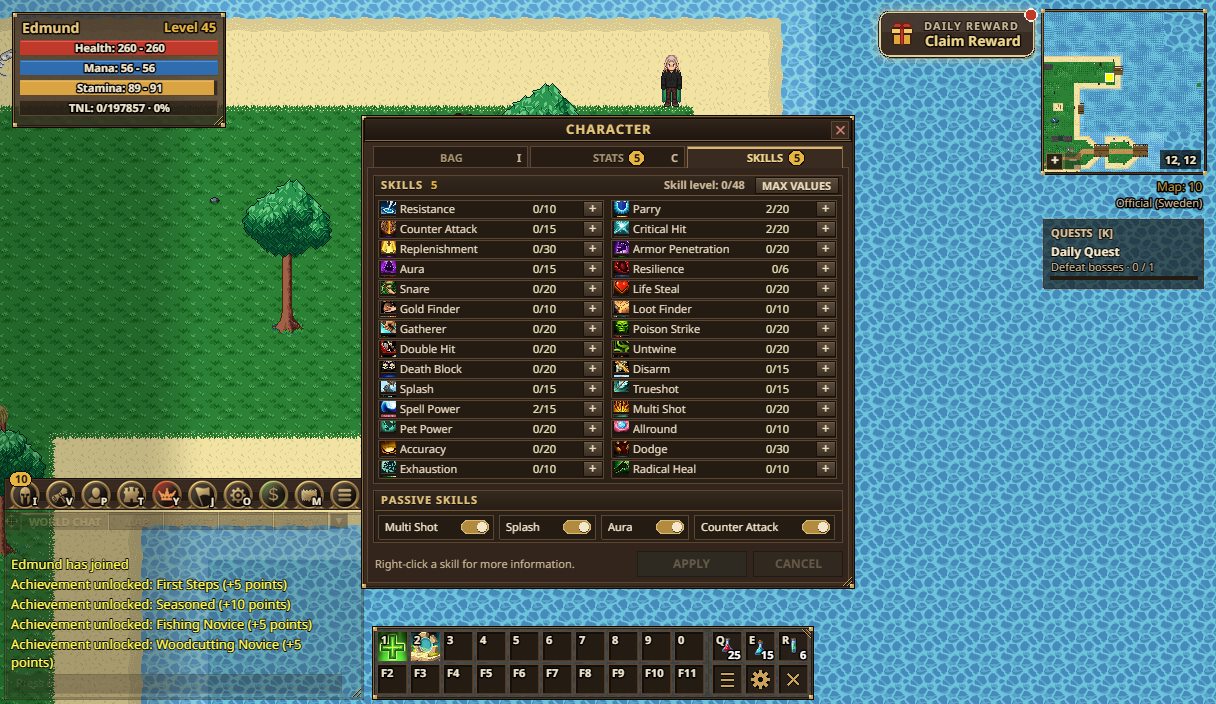
Each level gives 1 skill point (you start with 5); the number after SKILLS is how many you have left. Click + to plan a point in a skill (spent with APPLY at the bottom, like stat points); hover or right-click one to read what it does, and MAX VALUES lists how high each can go with items and buffs. A few skills need stats first (for example Double Hit needs 30 Strength).
Skills include Resist, Parry, Counter, Crit, Replenish, Armor Penetration, Aura, Resilience, Snare, Life Steal, Gold Find, Loot Find, Gatherer, Poison, Double Hit, Untwine, Death Block, Disarm, Splash, Trueshot, Spell Power, Multi Shot, Pet Power, Allround, Accuracy, Dodge, Exhaustion and Radical Heal. PASSIVE SKILLS lets you switch MultiShot, Splash, Aura and Counter on or off.
Your hidden Skill level (shown as "Skill level: X/48") grows from rare finds in chests and boosts all your skills.
Gathering
Gathering is an attack made while holding a tool: equip the tool, stand at the right place and press F, hold Ctrl or click.
| Skill | Tool | Where |
|---|---|---|
| Woodcutting | Wood Cutting Axe (you start with one) or Beta Wood Cutting Axe | Facing a tree, next to it |
| Mining | Mining Axe or Raiders Mining Axe | On an ore spot |
| Farming | Farming Tool or Golden Farming Tool | On a crop |
| Fishing | Fishing Pole (from the quest "Fishing Rod", given by a man near the harbour), Rare or Raiders Fishing Pole | On a fishing spot |
- Right-click a resource to see its level. With a skill of N you can gather resources of level N and below; raise the skill with housing points (see Stats).
- The Gatherer skill gives a 2.5% chance per point of getting extra resources.
- A gathering bar at the bottom shows your progress; "+N Exp" floats over you.
- Resources are used for crafting, rafts, trades and upgrades. Crafting > EXPERIENCE even turns 20 Oak, 30 Wheat, 30 fish or 30 Iron Ore into 850 experience. Gear with gathering bonuses helps.
- A tool in your hand is not a weapon: switch back to fight.
Quests
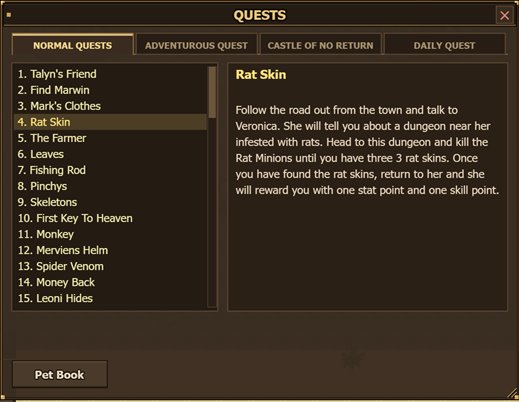
Open your quests with T or K, the Quests button, or by clicking the quest tracker. Quests are given by people in the world: right-click them and choose QUEST.
- NORMAL QUESTS: 70 quests. [S] = started, [F] = finished. You need the keys from quests 10, 20 and 30 to go on; the rest are optional.
- ADVENTUROUS QUEST: a harder, optional quest line in 22 parts with bigger rewards. Its progress is kept when you seraph.
- CASTLE OF NO RETURN: the castle mission, the Origin quest line (50 hidden people to find, starting in the starting temple) and its secrets.
- DAILY QUEST: a new task every day: kill 50–250 of one monster, kill 1–3 bosses, gain 1–2 levels, or gather resources. The reward is gold, experience or 9–15 gems (the higher your level, the more gold and experience), and always 1 token. Opening this tab starts it; Claim Reward collects it. Party members on the same map share kills.
Pet Book shows every pet you have found. Seraphing resets your normal quests.
Quests worth knowing: the keys from quests 10, 20 and 30 open the way forward, quest 40 "Destination" (around level 65) opens the way to Forestia, and the "Fishing Rod" quest gives you a fishing pole.
World map and minimap
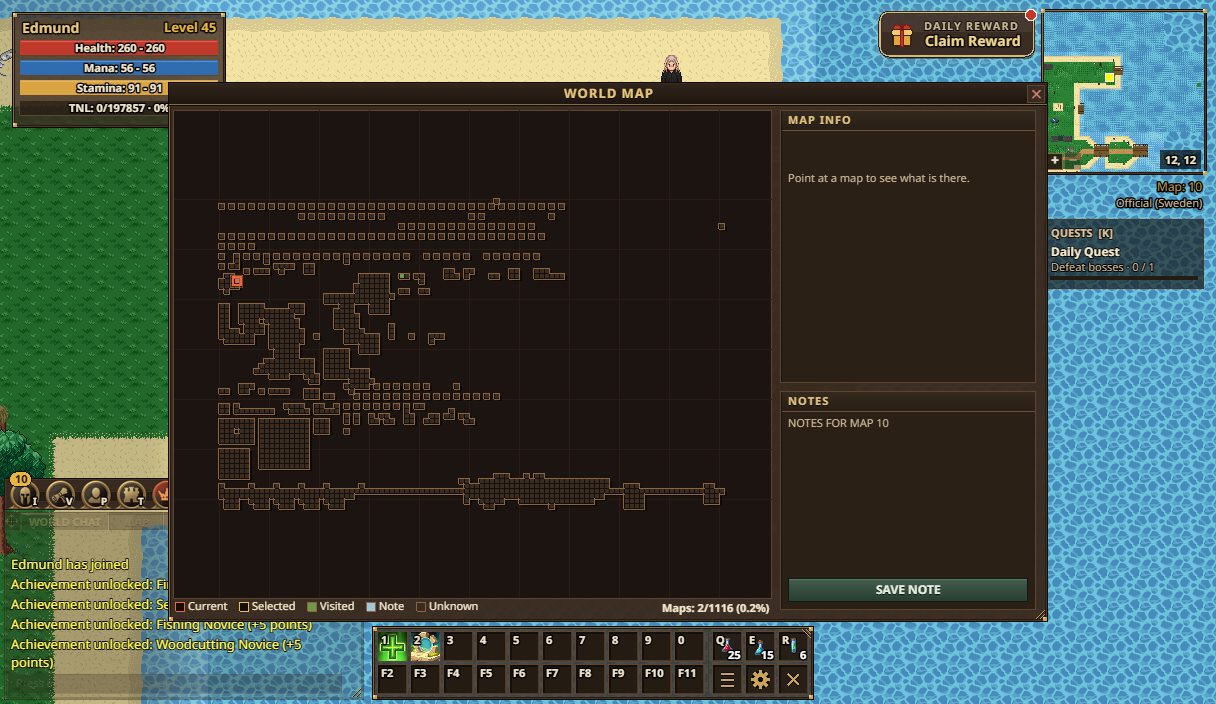
Open the world map with M or Tab, the Map button, or by clicking the minimap.
- Every map of the world is a small square: green = visited, white = has your note, dark = unknown. A pulsing ring marks where you are.
- Hover or click a map to see its name, size, its zone (Safe, PvP, or No PvP on a PvE server) and its monsters. Maps you have not found say "Not discovered yet".
- Bottom right: how many maps you have found.
- NOTES: write your own note for a map you have visited. It saves by itself as you type (SAVE NOTE saves at once; an empty note deletes it). Notes stay in this browser.
The minimap (top right) shows you as a yellow square, party members as green diamonds and other players as red dots, with + / − zoom and your X, Y position.
Shops, chest, market and the blacksmith
Shops (NPC)
The SHOP window shows up to 12 items FOR SALE. Click one to see its STATS, REQUIREMENTS and ITEM PRICE (some shops take other items than gold), then BUY. YOUR GOLD turns red and BUY is greyed out when you can't afford the item. Only potions can be bought many at a time (AMOUNT): TOTAL shows what they cost together, MAX fills in as many as your gold allows (and your bag can hold), and Shift+click on − / + changes the amount by 10 (on a phone: hold − or +). To sell to a shop, use Sell… on the item in your bag.
Chest (your storage)
Open it with B or the bag's CHEST button, in a safe zone. The title shows how full it is. Pick an item from your bag and DEPOSIT, or pick one from the chest and WITHDRAW, with an AMOUNT. Dragging a bag item onto the chest also stores it, and while the chest is open a bag item's right-click menu has Deposit and Deposit all. Filter tabs and SEARCH help you find things. Loot Find, Gatherer and the crafted Heavy Storage upgrades make it bigger.
Player market
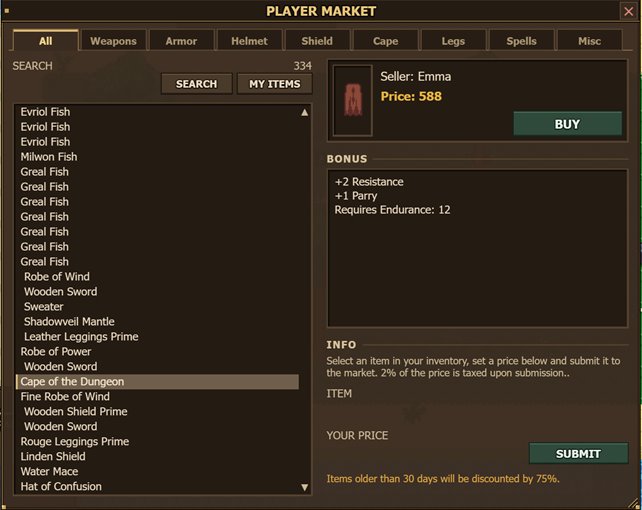
Open it with N or PLAYER SHOP, in a safe zone.
- Buying: filter (All, Weapons, Armor, Helmet, Shield, Cape, Legs, Spells, Misc) or SEARCH by item, bonus or seller; click a listing to see the seller, price and bonus; BUY asks before it spends your gold. Your gold shows above BUY, which is greyed out when the listing costs more than you have.
- Selling: pick the ITEM, set YOUR PRICE (1 to 750,000 gold) and SUBMIT. It asks first, with the tax: 2% of the price is taken when you list it. Worn items and items that can't be sold are greyed out in the list.
- The list shows each listing's price (red when it costs more than your gold, "yours" on your own); click ITEM, NEWEST or PRICE above it to sort.
- The market opens beside your bag: drag a bag item onto it, or use List on market… in the item's right-click menu, to fill in the item to sell.
- MY ITEMS shows your listings; select one and WITHDRAW to take it back.
- A listing stays on the market until someone buys it or you withdraw it.
On a phone or tablet
On a phone the shop, chest and market have their own layout: big rows with pictures on the left, the row you tap on the right. The filters are a row of chips that scrolls sideways (◀ ▶).
- Chest: WITHDRAW and DEPOSIT pages. Tap a chest row to take it out; on DEPOSIT tap an item in the grid of your bag's items. MAX fills in the whole stack.
- Market: BUY and SELL pages. Each row shows the seller and the price. The button next to MY ITEMS changes the order: price up, price down, newest, name. On SELL, tap a bag item, type YOUR PRICE (the number pad opens) and SUBMIT.
- Hold − or + to change an amount by 10. A button stays grey until you have picked something it can use; the market and the shop say how much gold you are missing.
On a tablet these windows look as on a PC, with bigger rows, tabs and buttons.
Blacksmith: upgrades and dyes
A blacksmith opens the BLACKSMITH window next to your bag. Click the item to work on, pick an UPGRADE TYPE (stat upgrades for gold, Remove All Upgrades, skill patches "+1 Skill" for tokens), check the STAT GAIN and press UPGRADE.
Skill patches cost tokens and need an item at +0 or higher; an item can have one patch. Tokens come from Colosseums and the daily quest.
CHOOSE ITEM (or a tap on the item's picture) lists every bag item the blacksmith can work on.
Six DYE buttons colour an item (Red, Green, Blue, Black, Yellow, Pink); dyes come from gathering.
Trades and skins
- MERCHANT'S TRADE and MERCHANT'S MINING TRADE: certain people swap your farming or mining resources for items. Each offer shows the item you get (hover it for its stats) and what it takes as "you have / needed", green when you have enough (in one stack). Press TRADE on an offer.
- SKIN ITEMS: give an item the look of another item of the same kind, for gold, emeralds, gems or tokens. The window shows the item now and with the new skin, what you need and what you have (green or red), and asks before it spends anything. CLEAR SKIN is free (putting a paid skin back on costs it again).
Crafting and cooking
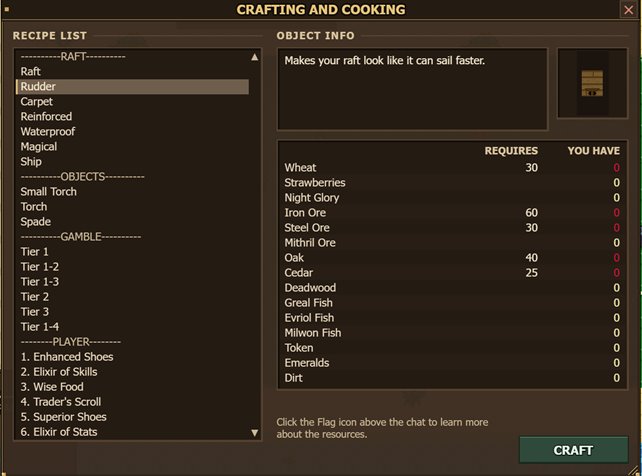
Open it with U or the bag's CRAFTING button. Pick a recipe in the RECIPE LIST; the table shows what it REQUIRES and what YOU HAVE (green = enough, red = missing). Press CRAFT and confirm.
- RAFT: raft, rudder, carpet and better boats, permanent upgrades you keep when you seraph.
- PLAYER: numbered character upgrades, crafted in order (better shoes, extra skill and stat points, more storage and more). Once crafted on one character, your other characters can craft them for free.
- OBJECTS (torches, the spade), POTIONS (cooking), EXPERIENCE, RES. FOR TOKENS, RARE items and pets, GAMBLE (a random item of a tier), and weapons and armor (ITEMS, SWORDS, BOWS, STAFFS).
- A recipe you can craft now has a ✓; one you lack materials for is dimmed. In the upgrade chains (RAFT, PLAYER) the next one says Next, later ones Locked, finished ones Owned. Tick Can craft to see only what you can make right now.
- On a phone, the chips next to Can craft jump to a section (RAFT, OBJECTS, GAMBLE…). A tapped recipe shows its picture, whether you can craft it, and each material as "you have / it needs" (green when you have enough).
Every recipe with its full cost is also listed on key2heaven.com (Game Info > Crafting).
Game Information
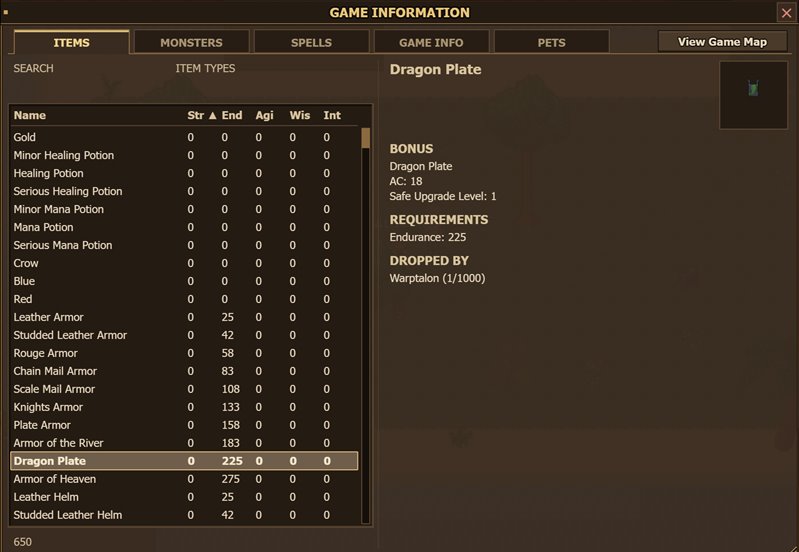
Open it with J or the Game Information button. It is the game's encyclopedia:
- ITEMS: every item, with a type filter, its bonus, requirements and which monsters drop it (most likely first; a long list shows the first ten and +N more…). Long details scroll.
- MONSTERS: monsters get their name here once you have killed one, with stats, drops and your kill count.
- SPELLS: every spell, its requirements and where to get it.
- FORMULAS: how the game works: damage per class, rarity, star monsters, pets, events, seraph, party experience, PvP balancing, tokens, gems and more.
- PETS: your pet book. Pets you found are green; their evolutions unlock at pet level 10, 25, 50 and 150.
Use the search box and click column titles to sort. View Game Map opens the world map.
Battle Royale, arena and special places
Battle Royale and matchmaking
Open with Y or the Battle Royale button. Two tabs: Battle Royale and Matchmaking, with the players in the queue and the rules.
- Register / Unregister for the queue, Refresh the list, Top List for the rankings, Vote Start (Battle Royale).
- Battle Royale: everyone starts at level 1 with nothing. Search chests and stay inside the shrinking zone. A match starts after 10 minutes with at least 3 players, or when half the players vote to start. C drops a crate there.
- Matchmaking: 1 against 1 for 5 minutes, from level 15. No items are dropped, it is safe for hardcore players, and you win or lose rating (MMR).
Colosseum, speed runs and events
Colosseums are wave fights, often in groups, ranked on the Colosseum top list. Speed run courses time how fast you get through an area. Server events (more experience, loot, gold or gathering) happen now and then; !events in chat tells you what is on.
Boss events come about every 5 days and are announced an hour before in chat and on Discord. Enter through the big blue EVENT stone in a town and defeat all the bosses on the event map: everyone there gets rewards. There is one event per island, with better rewards on later islands; the highest level allowed in is 45, 50, 60 and 85 for islands 1 to 4, and island 5 has no limit (and is very hard). An event lasts about an hour, and the event maps are safe from other players.
Castle of No Return
The door to the castle is opened by pushing 8 stones in the right order; the clues are spread around the town and in your quest book. ENTER tries the order, RESET STONES starts over.
Seraph
From level 60 you can seraph (be reborn): you start again at level 1 in the starting temple, but every seraph gives higher base stats (10 + 5 per seraph) and more skill and housing points, and new content opens (such as The Lost Island). The level needed rises by 10 each time (level 70 for the second, 80 for the third), and from the third seraph on you must be on Island 5 to do it. There is no last seraph. Your worn items go back into your bag, and your normal quests, spells and spawn point are reset; your items, gold, rafts, Player upgrades and Adventurous Quest progress stay. Game Information > FORMULAS > "What you keep - Seraph" lists what you keep.
Gems and the shop
Open the shop with Shift+N or the Shop button. It shows Your Gems; gems belong to your account.
- Spend gems on event potions (start a server-wide Exp, Loot, Gold or Gather event), name changes, a full skill reset, more chest space, a gender change, item, name and chat colours, skin colours and hair. Every purchase asks first and shows how many gems you will have left.
- You also earn gems for free: 15–30 for winning a Battle Royale, 9–15 from a daily quest that pays in gems, from arena matches, the daily reward and from monsters (see Game Information > FORMULAS > "Earn Gems").
- Buying gems with money is done in the Steam version.
Coming in the next update
These features are finished and tested, and arrive on the servers with the next game update. Until then they are not in the game yet.
New placesSoon
- Six castles, one per island, with keeps, guards and arrow traps that shoot when you walk past. Watch the walls and keep moving.
- Six new caves, one per island, entered through doors, hatches and stairs, with stronger monsters than the island around them.
- Six new seas to explore by raft, each with its own sea depths underneath. Sea monsters are tougher but give much more experience.
- Quest chests hidden in caves and castles: each one gives a quest point, once per character.
More gear and a bigger bagSoon
- Two new equipment slots, Gloves and Boots, with new gloves and boots that monsters drop on every island.
- A bigger bag (80 slots) that scrolls.
Playing togetherSoon
- Trading between players: open the profile of a player close to you and press TRADE; you both put in items and gold and both have to accept.
- Emotes: wave, cheer, laugh, dance and more (type /wave and so on in chat).
- A message when a friend comes online.
- More for guilds: a guild tag, your own rank names, a message of the day, guild levels that give extra experience, and a guild bank.
- Achievements with points and titles to earn (Shift+K), with their own top list.
- Your own home: a plot to build on, with crafting stations and room for guests.
- Report or block a player who bothers you.
Shops and pricesSoon
- Shops will buy items for 30% of the item's lowest shop price.
- Buying gems in the browser and in the phone apps.
Options
Open with O (the toolbar's Options button opens the Hotkeys page). Five tabs; each ends with RESTORE DEFAULTS (for that page; on Hotkeys it asks first) and CLOSE. Hover a setting to read what it does.
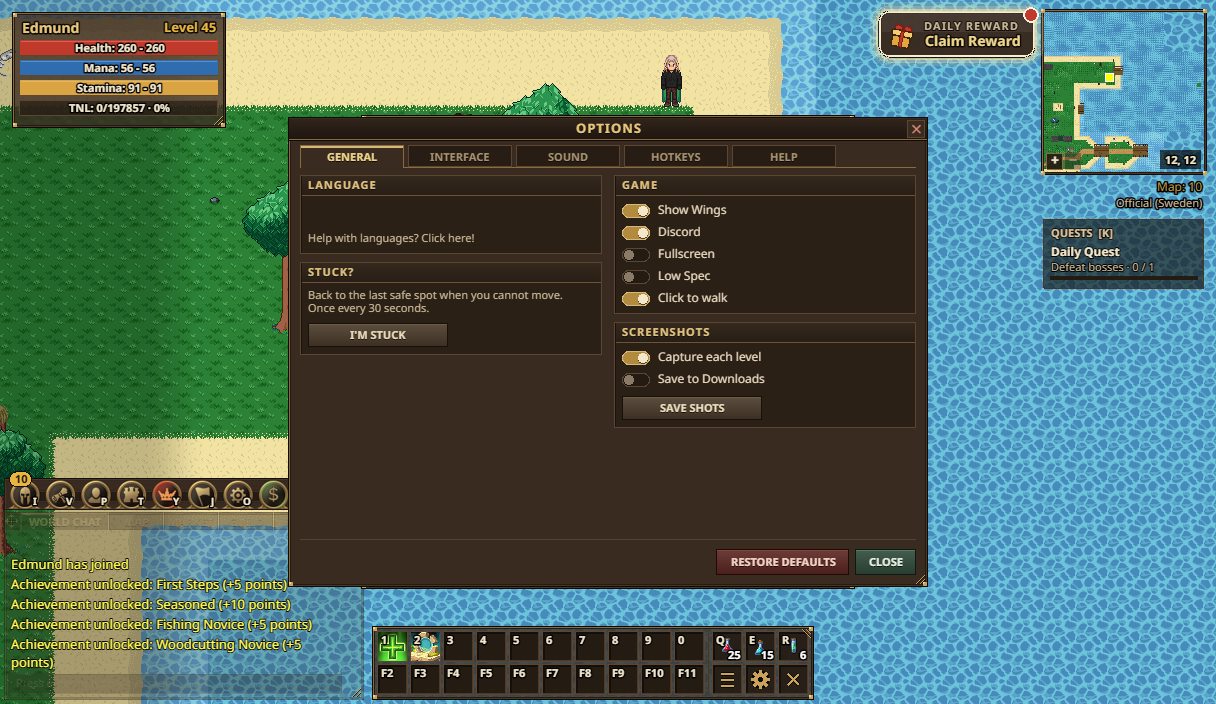
General
- LANGUAGE of the game.
- I'M STUCK: back to the last safe spot (once every 30 seconds).
- Show Wings, Discord (on the official servers your logins and deaths are posted to the K2H Discord; switch it off to keep them private), Fullscreen and Low Spec (turns off weather, fog and other effects for slow devices).
- Screenshots: the game takes a picture at every level up ("Capture each level"); "Save to Downloads" saves them right away and SAVE SHOTS downloads them all.
- On touch screens: Tap to target, Tap to walk and EDIT HUD.
Interface
- Interface size (80–150%) and the chat text size.
- What to show on screen: your name, pet name, vitals, minimap and its border, quest tracker, minimized chat, damage, experience and skill numbers, key hints.
- RESET WINDOWS: windows back to their normal place and size.
Sound
The music tracks you have unlocked (double-click or PLAY, STOP), switches for music, sound effects, automatic play, chat and PM sounds, and the volumes.
Hotkeys
Click an action's key, then press the new key (or combination). Esc cancels. A key that is already used shows "This key is already used!" and the button keeps waiting for another key. Enter (chat), Tab (world map), G (pick up) and the arrow keys (walk) can't be bound; they are listed at the end of the page with the other fixed keys. When a new key would be caught by another binding first, a warning says which. Keys are saved per character in this browser. (Not on touch screens.)
Help
The tutorial video, the TUTORIAL window, the CONTROLS overview and this guide.
The Help window (H) is a three-page cheat sheet: controls, the interface and chat, and gameplay basics.
Phones and tablets
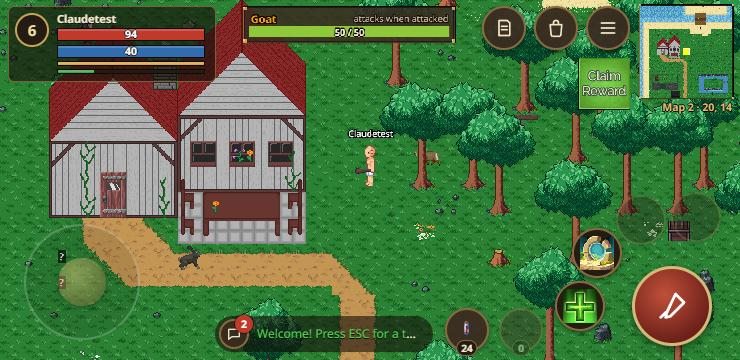
Play with the phone or tablet held sideways ("Rotate your device" shows in portrait).
- Joystick: put your thumb anywhere in the lower left and slide. A quick tap there taps the world. Options > General > Touch > Left-handed controls (also in Edit HUD) swaps the sides: joystick lower right, attack and skills lower left.
- ATTACK: hold to keep attacking. Around it is a ring of skills: tap one to use it, hold it to read it, swipe across the ring or tap the "1 / N" pill for more. Heals and buffs go off at once; a damage spell is selected and cast at your target ("Tap a monster to cast…").
- Potion buttons: healing and mana, with counts.
- An action button appears when there is something next to you: Pick up, Talk, Open (a chest) or Gather (hold to keep gathering).
- Top right: Quests, Bag and Menu buttons (with badges for finished quests and a nearly full bag), the minimap (tap it for the world map) and your map and position.
- Top left: your level, health and mana; tap for all the numbers. Under them your buffs and boosts (torch, exp potion) with their time left; tap the row for a card that lists them all.
- Chat: the newest line shows at the bottom; tap it to open the chat with channel buttons and a Send button.
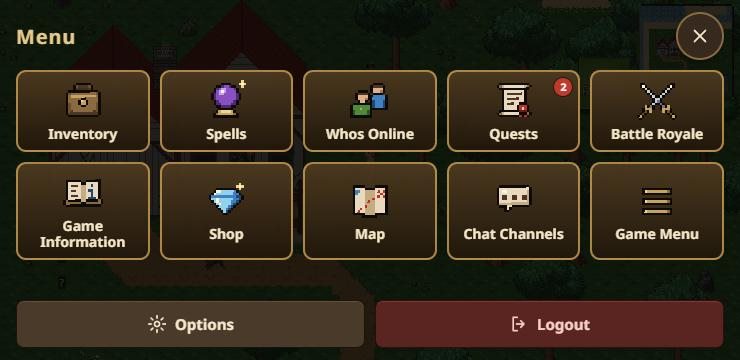
- Menu holds every window as a big button, plus Options, Edit HUD and Logout. Windows open full screen on a phone; close them with the X at the top.
Gestures
- Tap = click. Long press = right-click (player profiles, talking to people, item details). Pinch with two fingers to zoom.
- Lists and long texts follow your finger: drag them up or down, or flick them to keep them gliding.
- Tap a monster to fight it: it becomes your target and you walk up and attack (a bow keeps shooting, a chosen damage spell is cast again and again). ATTACK then aims at it.
- Tap to walk (off by default): a tap on open ground walks there.
Tablets and Edit HUD
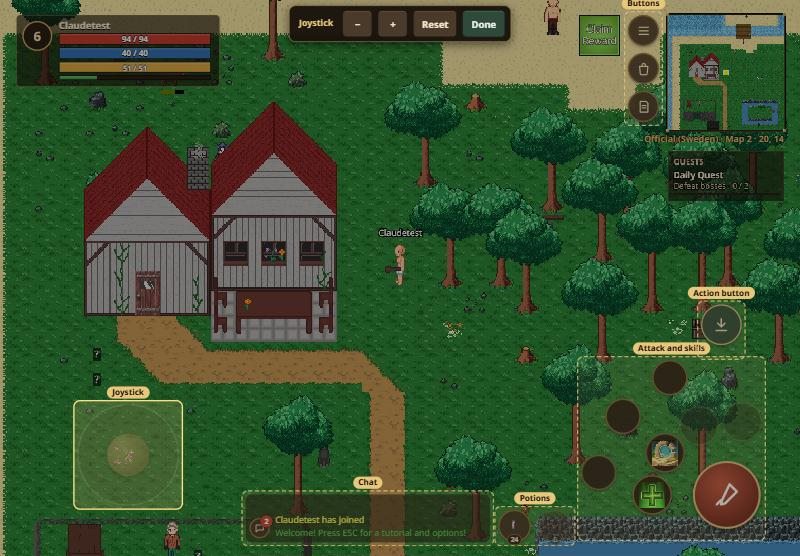
Options > General > Touch > EDIT HUD (or Menu > Edit HUD) lets you drag the joystick, the attack and skills, the potions, the action button, the round buttons and the chat where you like, and make them bigger or smaller with − / +. Reset undoes it all, Done saves.
Problems and answers
"You have been disconnected from the server."
Press Back to the login screen, pick the server and sign in again. If it keeps happening, try another server in the same realm (Logout > Change Server); a closer server can also give a better connection.
The game is slow
Turn on Low Spec in Options > General, close other tabs, and try a server nearer to you.
I can't move
Close open windows (Esc). Still stuck? Options > General > I'M STUCK.
My keys don't work
Click the game once so it has focus, and make sure you are not typing in chat. Check Options > Hotkeys, or press RESTORE DEFAULTS there.
"You need to be in a safe zone to do this."
The chest, the market and selling only work on safe maps (the map name under the minimap is not red).
Where do I get help?
Ask in world chat, join the Discord (key2heaven.com > Community), or watch the video guide. The website key2heaven.com has every item, monster, quest and recipe, top lists and your account page.
Friends, party, guild and top lists
The social window opens with P (L for the top lists). The left side has SOCIAL (Friends, Whos Online, Party, Guild) and LEADERBOARDS.
Friends and Whos Online
Party
Guild
Top lists
Top Players, Top Questers (and daily questers), Top Speedrun, Top Hardcore, Battle Royale, Colosseum, Top MMR and General Top (highest gathering levels, most pets, monster kills, reputation and more). The full top lists are also on key2heaven.com.
Player profile
Right-click another player to see their PLAYER PROFILE: level, seraph, gathering levels, monsters killed, music unlocked, quest points and more, with GUILD INVITE, PARTY INVITE and CREATE PARTY.